


Moving observations
PPK processing
Post-process base and rover observations to calculate a trajectory. Review the solution before using the results for your images or field deliverables.
From GNSS data to geotagged images and augmented reality.
Process your field data in one desktop workspace: PPK, static GNSS and Stop & Go, terrestrial photogrammetry, drone image geotagging, and AR file preparation for ROLAVICam and ROLAVIScan.
Try all features free for 7 days.
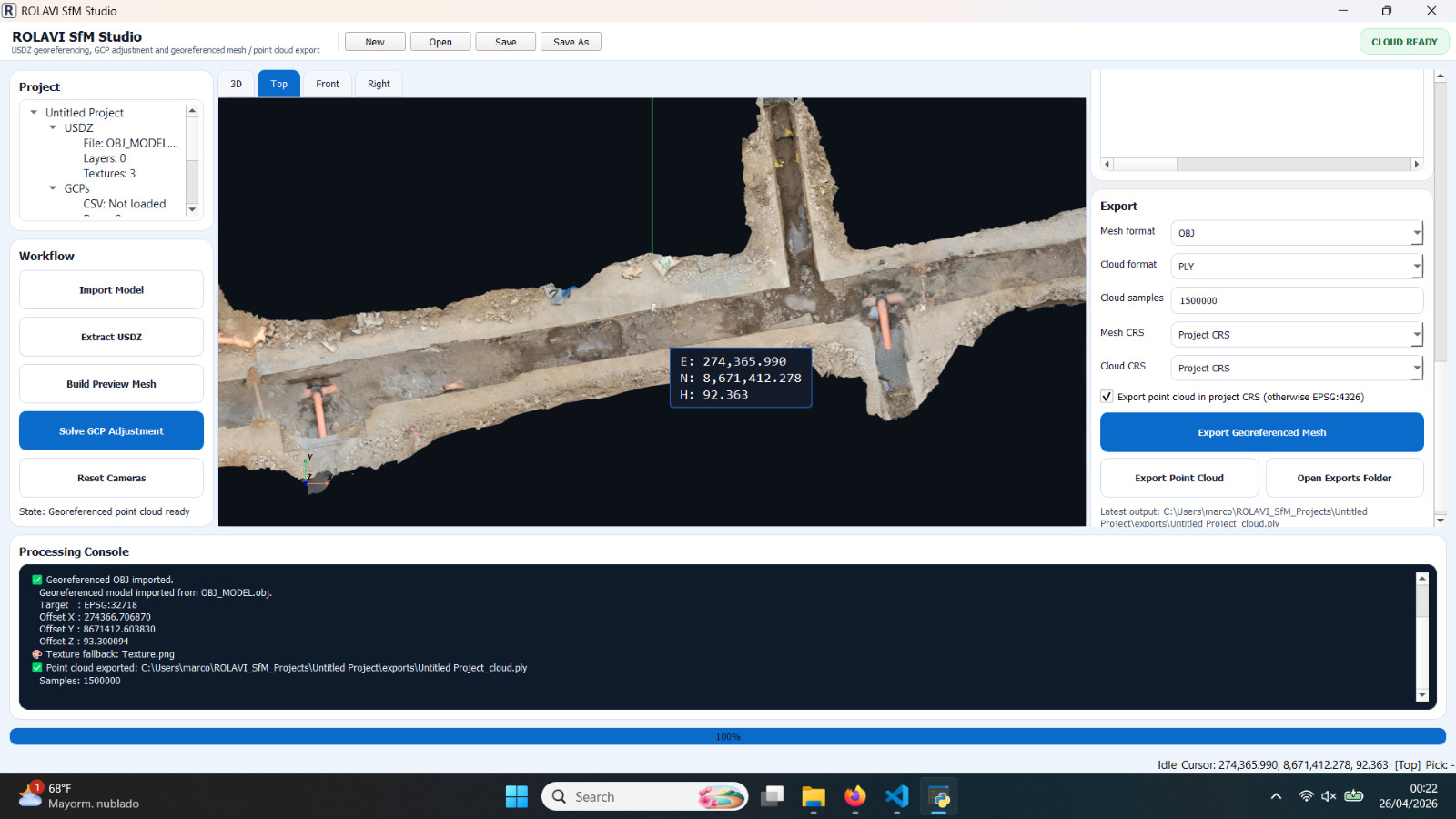
ROLAVI workspace · Georeferenced models and deliverables
01 / GNSS processing
Prepare your GNSS data and choose the processing workflow that fits your survey.
Moving observations
Post-process base and rover observations to calculate a trajectory. Review the solution before using the results for your images or field deliverables.
Fixed observations
Process GNSS observations collected at a fixed point to support control surveys and base coordinate determination.
Static GNSS / Solution review
Configure observations, base coordinates and the processing strategy. Review your results, solution quality and baselines in the GEOStudio workspace.
Point-by-point surveying
Collect points with ROLAVICam, ROLAVIScan or SW Maps and post-process the occupations in ROLAVIGeoStudio. Keep the receiver stationary at each point, then continue to the next one while raw GNSS recording remains active.
Keep the point records and raw GNSS observations: both are needed to associate each occupation with the post-processed trajectory.
02 / Image geotagging
Connect capture time, coordinates and control points to prepare the next stage of your project.
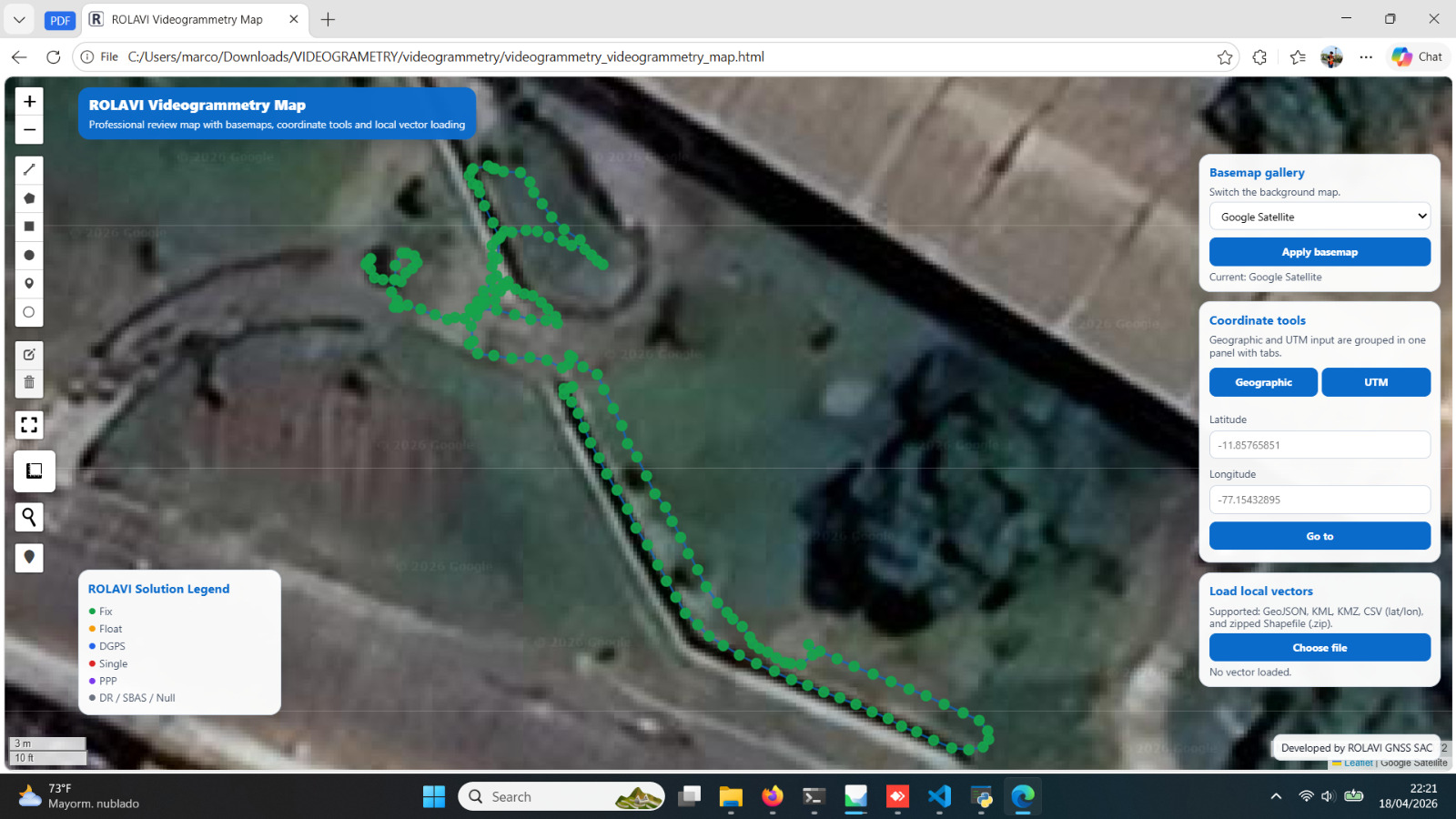
Bring together photographs, video frames and ROLAVI field records. Prepare geotagged images and organize AutoTags and GCPs for processing in Agisoft Metashape.
Connect flight photos with GNSS observations and compatible MRK event files. Use the PPK solution to update image coordinates and review the result on a map.
Work with textured models and point clouds in OBJ, USDZ, PLY, LAS and LAZ workflows. Prepare maps, reports and deliverables for CAD/GIS environments.
 ROLAVIScanVideo demonstration
03 / Office to field
ROLAVIGeoStudio generates augmented reality files for ROLAVICam and ROLAVIScan. Prepare the project in the office, open the compatible AR file in your field app and visualize the model over the camera view.
04 / Start your next project
Download ROLAVIGeoStudio 1.0.1 for Windows or Mac and try all its features free for 7 days.
Perpetual license
Explore the full application before purchasing your perpetual license.
Request a license64-bit · EXE
Installer for 64-bit Windows.
Windows installation helpApple Silicon · ARM64 · PKG
Installer for Mac with an Apple Silicon processor.
Try all features free for 7 days.
Windows installation
Keep antivirus protection on. A detection must be checked; do not assume it is a false positive.
C:\Program Files\ROLAVI GEOStudio\ROLAVI_GEOStudio.exeOpen Windows Security → Virus & threat protection → Protection history. Check the detection and affected file. Use the download from this website.
Contact ROLAVI support and request review by your antivirus provider. Restore a quarantined file or allow it only after it has been verified as a false positive.
In Windows Security, open Virus & threat protection → Manage settings → Exclusions → Add or remove exclusions → Add an exclusion → File. Select the executable shown above.
Do not exclude the entire installation folder, all EXE files or a process. A file exclusion reduces protection for that file; remove it when the detection is resolved. For other antivirus software, follow its provider’s guidance.
ROLAVIGeoStudio / Third-party software
ROLAVIGeoStudio uses Blender, components derived from RTKLIB and Unicore Converter 3.0.7. Each component retains its own license and copyright notices.
Spanish and Portuguese are informative translations. The original RTKLIB license and the full GNU GPL v3 text remain unchanged in English in all three files.
GNSS positioning
GNSS conversion and positioning components derived from RTKLIB / RTKLIB demo5 (RTKLIB-EX). The supplied notice reproduces the RTKLIB BSD 2-clause license; any additional notices for the actual build also apply.
RTKLIB project3D processing
Blender supports the 3D processing workflows. Blender binary distributions use GPL-3.0-or-later; the exact build’s copyright and dependency notices also remain applicable.
Official Blender licenseGNSS conversion
Unicore software for GNSS data conversion, including UM980 observations and RINEX. According to the supplied notice, permission to redistribute Converter 3.0.7 has not been confirmed. This attribution does not grant that permission.
Unicore documentationWhen Blender is included in an installer, its corresponding source must be made available under the applicable GPL terms. A general website link alone does not identify that source.
The supplied notice does not identify the Blender version included in these installers. The official archive below is a general reference, not a verified source package for a particular ROLAVIGeoStudio installer.
Third-party names belong to their respective owners. Their mention does not imply endorsement of ROLAVIGeoStudio. ROLAVI’s terms do not override rights granted by third-party licenses.

